First start
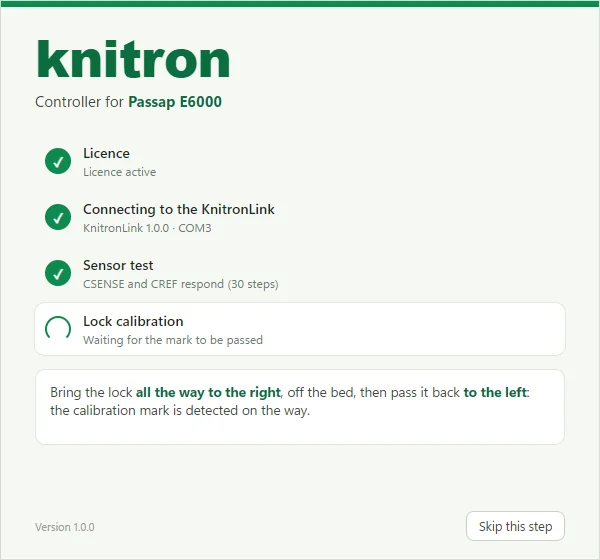
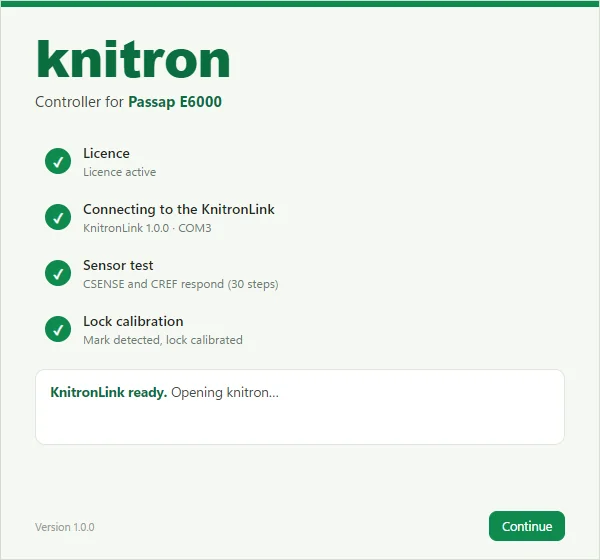
Each time it starts, a short assistant prepares the session: licence, connection to the KnitronLink, sensor test and lock calibration. Day to day, it runs almost without you.
1. The licence
The very first time, knitron asks for your licence number: five blocks of five characters, such as 5PGCF-2XVNH-9EV2H-703B4-5WCT4. Type or paste it, then click Activate. No need to worry about capitals or dashes.
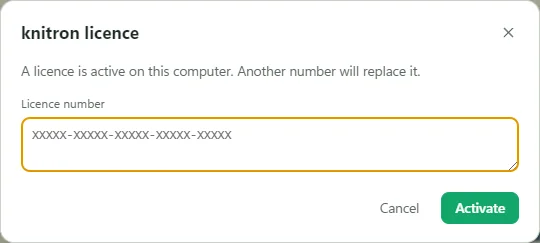
- The licence is activated online: the computer must be connected to the internet. knitron then checks it at every start and before every connection to the KnitronLink.
- A licence can be activated on two computers. To change computer, first remove it from the old one (Machine panel): its seat is freed.
- Continue without a licence opens knitron to design and prepare your settings. Knitting with the KnitronLink stays locked until activation.
- You can enter the licence later, from the home screen or the Machine panel.
2. The connection
knitron looks for the KnitronLink on the USB ports, starting with the one used last time. Once found, it shows it with its port, for example KnitronLink 1.0.0 · COM3.
Nothing answers? Check the USB cable and the power supply, then Try again. Continue without a machine opens knitron; you can connect later from the Machine panel.
3. The sensor test
Slide the lock a few needles, one way then the other. Both sensors should react; the test completes by itself. You can also skip it and come back to it in the Machine panel.
4. Lock calibration
Bring the lock all the way to the right, off the bed, then move back to the left. As it passes the mark, the KnitronLink learns the exact position of the lock. If the box has stayed on since last time, this step completes immediately.
All that is left is to click Continue.